
AI Slide Generator
Quick answer
Draft a slide outline and visual storyboard from reviewed source material, then verify claims, citations, narrative, brand, accessibility, speaker notes, and the exported file.
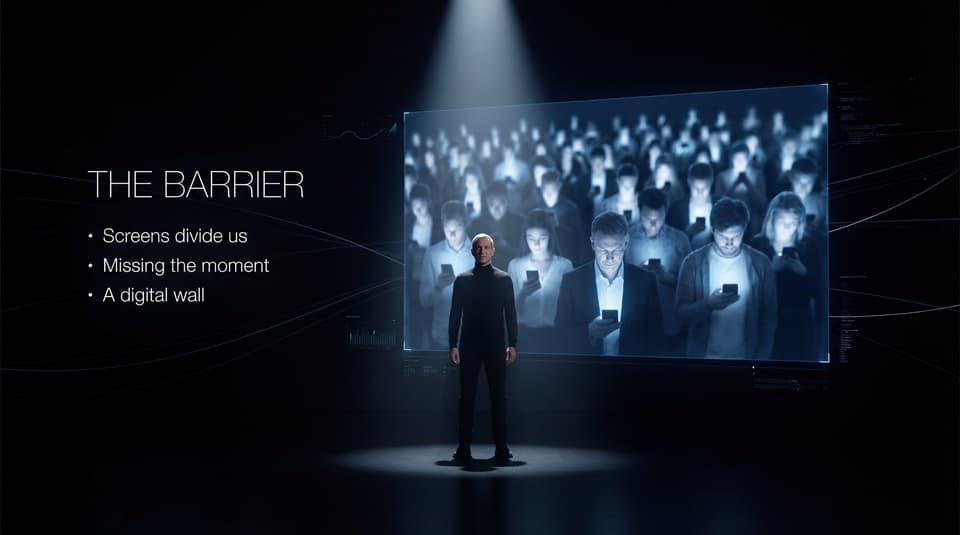
Celebrity business roadshow
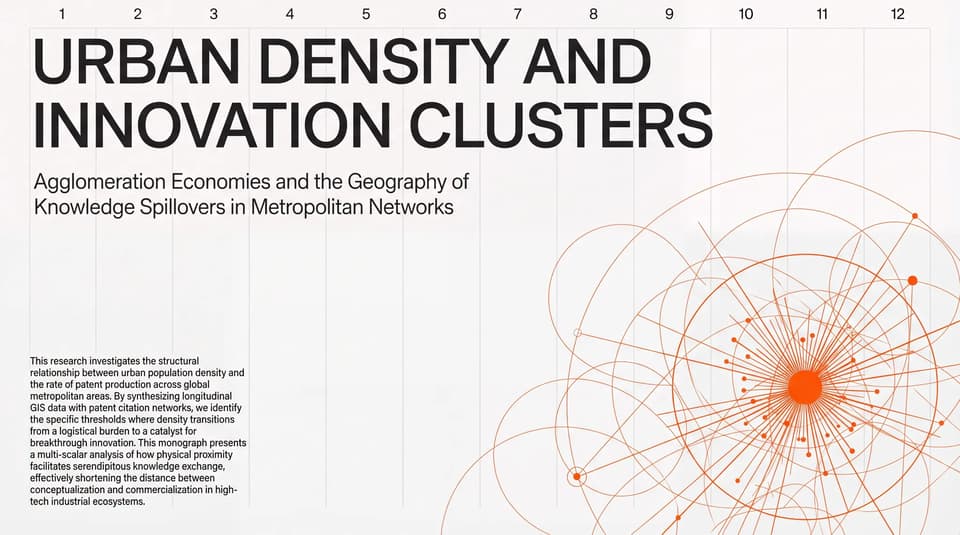
Swiss Minimal Editorial Research

Fashion creative director

Innovation Intelligence System

Research-driven innovation leader

Kuiper Belt research

Neo-Glassmorphism meets Corporate Minimalist.

Thanksgiving famliy gathering

Valentine's Day confession
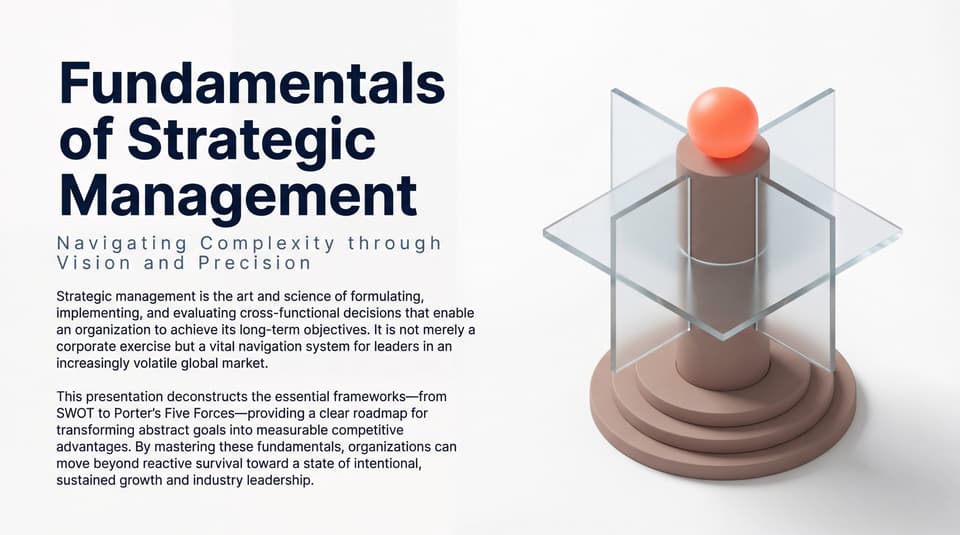
Fundamentals of Strategic Management

Portfolio for interaction designer

Halloween-themed party invitation
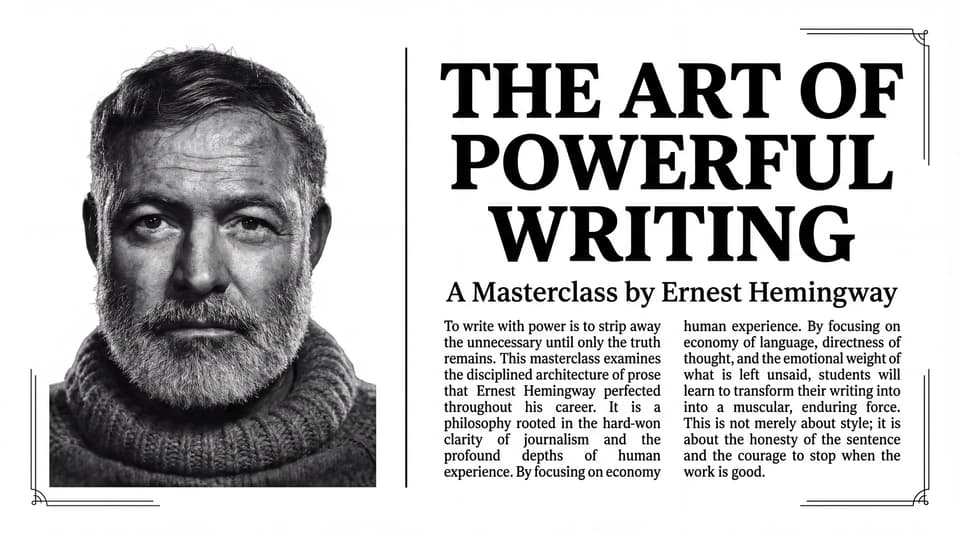
Newspaper-Style Hemingway Writing Masterclass

Business plan for an eco-friendly clothing brand

Condense paper into a 20-page presentation.
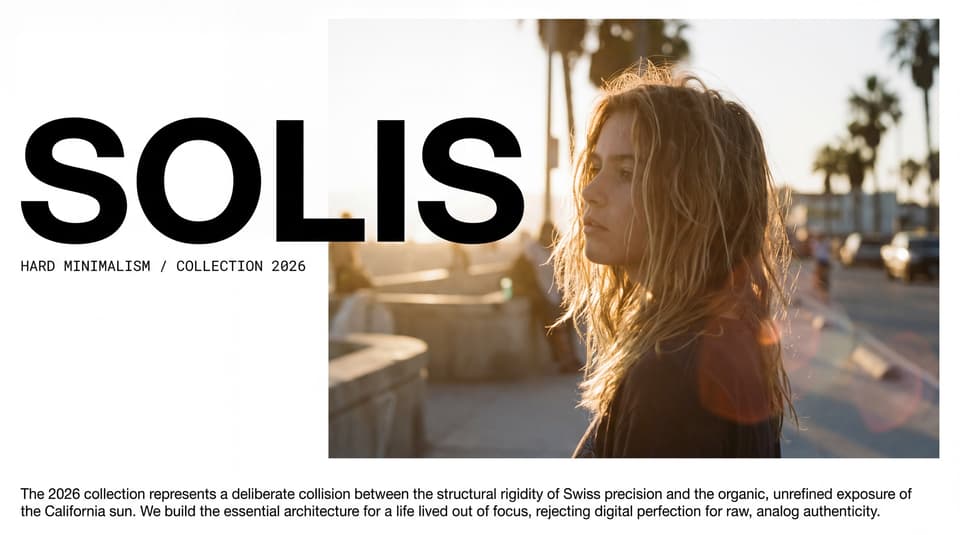
Streetwear Brand Handbook 2
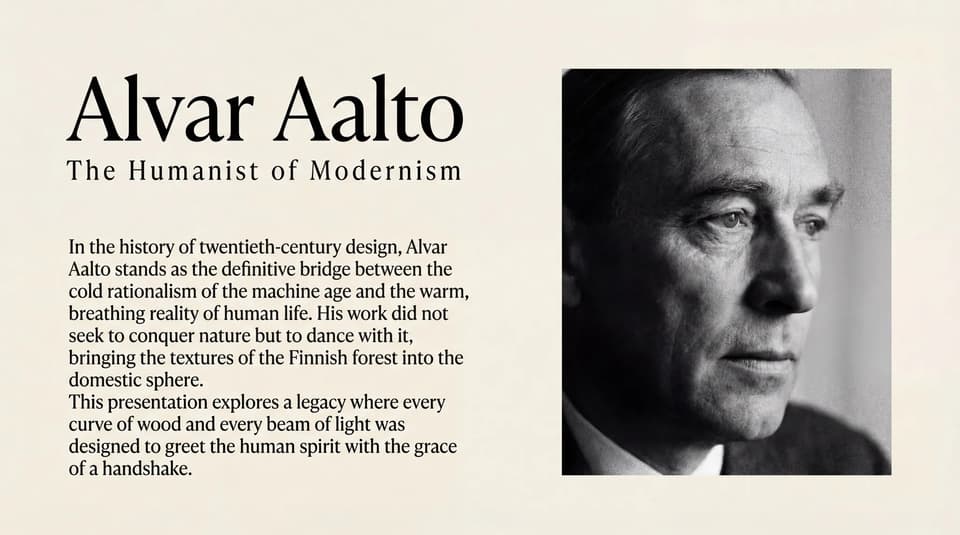
Introduction to the Minimalist-Style Aalto
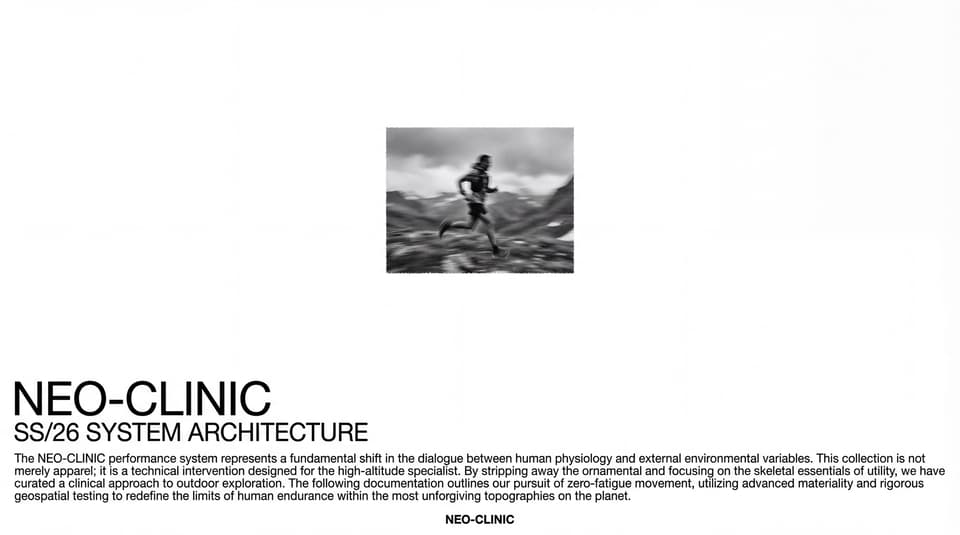
Outdoor Brand Manual
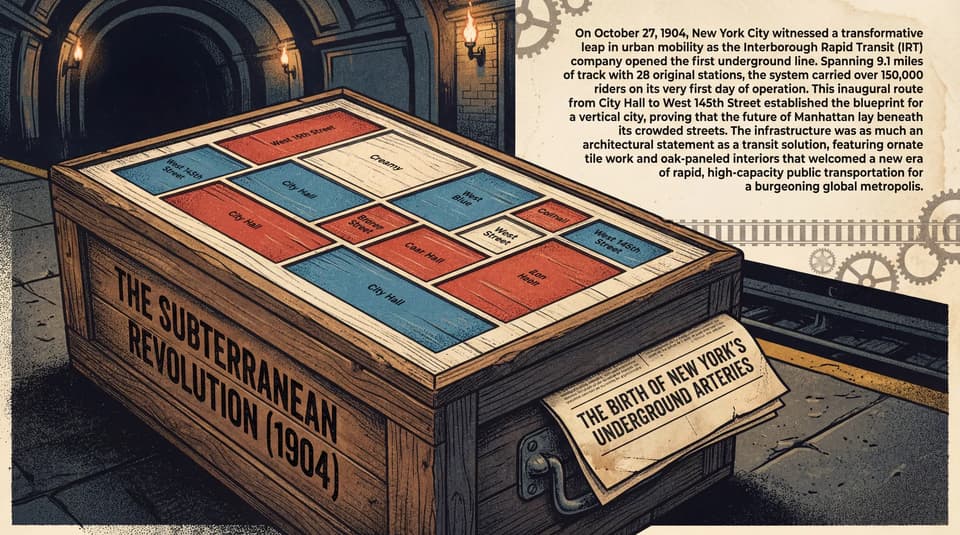
Skeuomorphic New York Subway Introduction
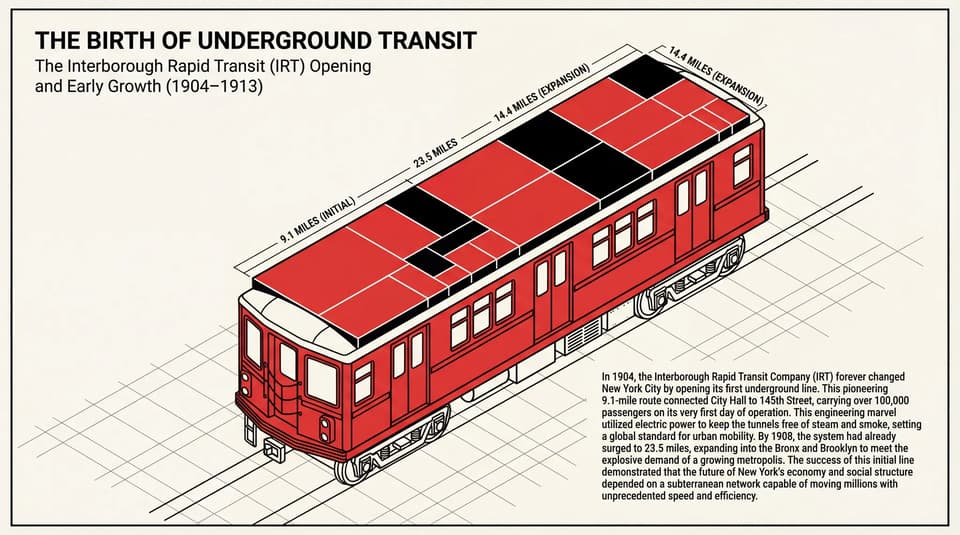
Flat Data Visualization Illustration Style — Introduction to the New York Subway
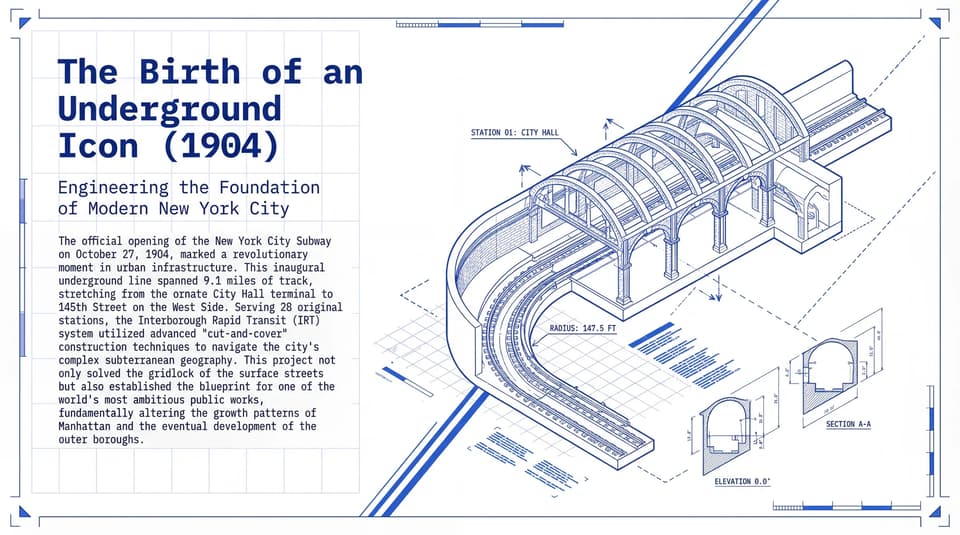
Blueprint-Style New York Subway

Cinematic Dark Tech Research
Nano Banana Pro slides capabilities

Draft for a Defined Presentation Job
State whether the deck is an executive briefing, client pitch, workshop, or lecture, then provide the audience, decision, evidence, slide count, and review criteria.

Smart Visual Layouts
Draft text, image, and chart placement, then inspect hierarchy, density, reading order, contrast, alignment, and source attribution on every slide.

Consistent designs
Use a shared visual direction across the deck, then check typography, colors, spacing, image treatment, page numbers, and recurring elements after export.
How Nano Banana Pro compares with
General Image Models
Nano Banana Pro
Slide-ready visuals
Not optimized
Drafted for a stated slide size and audience, then reviewed
Text clarity on slides
Often distorted
Every word, line break, and translation still requires review
Visual structure
Free-form, unstructured
Proposed hierarchy, spacing, and composition to inspect
Data-driven graphics
Rarely usable
Candidate charts and diagrams that must match source data
Editing efficiency
Heavy post-editing
Revision effort measured after export in the target app
How to create slides with Nano Banana Pro?
Define Your Narrative & choose preferred style
Simply type out your vision. Whether it's a "Q1 Marketing Strategy for a Tech Startup" or a "University History Lecture," just describe your topic, target audience, and key takeaways. Choose your preferred slide style and start generating.
Review the Draft Structure
Inspect whether the draft structure supports the intended decision, whether images have rights and sources, and whether typography and charts remain readable.
Check the Current Export
Use the export options available in the current workspace, then open the file in the target app and inspect layout, fonts, charts, links, notes, and accessibility.
Frequently Asked Questions
Start creating today
Draft a presentation from reviewed evidence, then refine the story, slides, notes, and export with a human presenter.
For a related Flowith route, explore the AI one-pager generator.