
Canvas Navigation in Agent Mode
Canvas Execution: Prompt to Plan
1. Prompt Parsing and Seed Discovery
- Trigger: User enters a prompt and activates Neo in Agent Mode.
- Process: Neo analyzes the prompt for key terms, including:
- Named entities (e.g., “May 2025 Sales Report”, “Q2 Consumer Behavior Summary”, “Chimera GPU Whitepaper”)
- Goal-based language (e.g., “summarize”, “generate”, “compare”)
This parsing is automatic. No special formatting is needed by the user — Neo extracts intent and targets naturally from conversational input.
- Knowledgebase Usage (if enabled): Neo queries the Knowledge Base for any contextually matching documents. These documents are converted into “seeds”, key fragments of relevant data. Which are used to grow a context-aware Recipe.
2. Knowledge Garden and Recipe Generation
-
Concept: Neo builds a Recipe, a living execution plan made up of evolving subtasks.
-
With Knowledge Base Enabled: Extracted seeds are used to enrich the Recipe with domain-specific context. Seeds are re-quoted inside the canvas so you can trace what context was used.
-
Without Knowledge Base: Neo builds a base-level Recipe using model knowledge, tools, and live search.
-
Additional Controls: You can pause an active Recipe at any time to temporarily halt execution.
3. Task Planning and Tool Allocation
Once the Recipe is seeded:
- Neo activates the Dispatcher. This allocator breaks down the Recipe into actionable subtasks and selects tools for each step.
- Toolset Sampling:
Based on your goal, Neo dynamically selects from tools such as:
- Web Search
- Code Generator
- File Uploader
- Chart Interpreter
- Terminal (if enabled)
- Live Plan Rendering:
The Recipe and subtasks are visualized directly in the canvas. Each task node can be expanded to see:
- Chosen Tool
- Reasoning
- Output
- Follow-up tasks (auto-generated)
If a task fails, Neo re-routes. It will adapt the Recipe and try alternative tools or updated phrasing — even mid-plan. The remaining steps to complete the task is estimated by Neo and displayed at the bottom of the recipe list
4. Execution Begins
After the plan is finalized, the Start button launches execution. You can pause, stop, or adjust task inputs live.
Neo continues refining the Recipe in real time, responding to results, user edits, and discovered context. This dynamic execution lets Neo outperform static agents that cannot re-plan.
Common Node Types in Neo’s Canvas
As Neo executes a task, it dynamically generates node blocks inside the canvas. Each node represents a specific action or tool usage within the current Recipe. Understanding these common node types helps you trace Neo’s reasoning and interact more effectively with ongoing or completed plans.
1. Gen Document Node
Purpose: Neo uses this node to draft written plans such as roadmaps, task briefs, and multi-step strategies based on the current Recipe context.
Features: Click the down arrow icon to expand or collapse the full document view (appears on the right side of the screen). You can also hover over the node and press E as a shortcut. Documents are version-aware and update based on upstream changes in the Recipe.
Tip: Review the Documents to provide more concise follow-ups with neo about edits. You can also Right Click this node to directly add the contents to your Knowledge Base
2. Online Search Node
Purpose: Triggers a deep search across multiple platforms to gather external data necessary for informed task planning.
Features:
- Displays links and excerpts from search results.
- Hover the Online Searc Node and Press
Eto view full search results with the sources located at the bottom - Neo may create multiple Online Search nodes per task if additional data is required. Alternatively you can tell Neo to not perform any online search or include a fixed amount of sources to include
Example: Searching for “Chimera GPU specs” results in this node, which then influences downstream coding or writing steps.
3. Gen Webpage Node / Refine Webpage Node
Purpose: This is Neo’s code generation node, typically used for writing websites, frontends, scripts, or downloadable source files. You can click the Down Arrow icon to review the code
Features:
- Open in New Tab: Launches the code output in a sandboxed preview
- Download: Saves the raw code as a ZIP file
This node is used extensively for technical recipes involving HTML, JS, CSS, Markdown, or static site builds.
4. All Task Complete Node
Purpose: Signals that Neo has finished executing all Recipe steps.
Features:
- Shows a completion banner inside the canvas.
- Contains a follow-up input dialog so you can extend or refine the task without resetting the entire canvas.
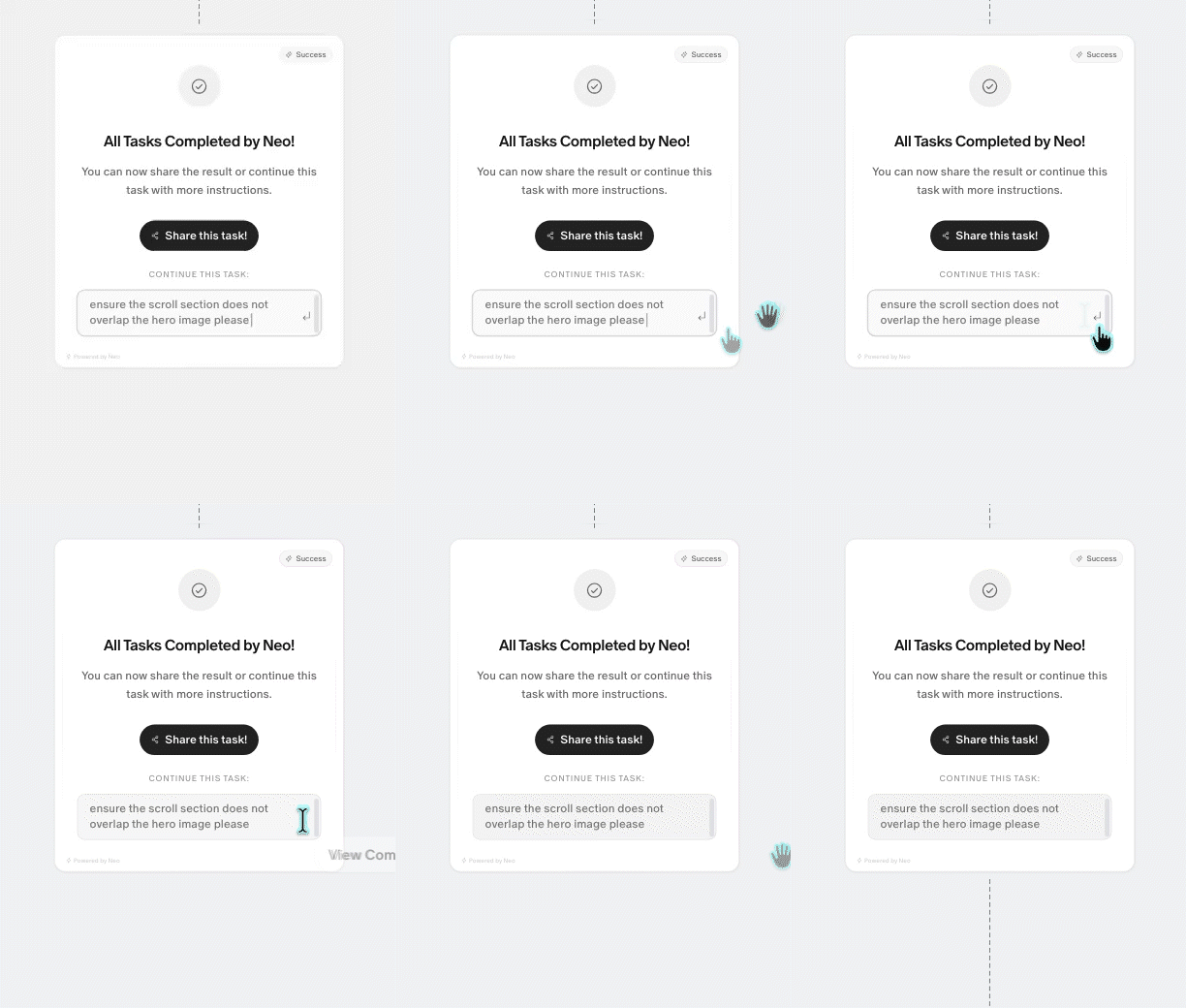
You can treat this as a checkpoint — review the output, save results, or continue iterating.
5. Ask User More Node
Purpose: Activated automatically when Neo detects that the user’s prompt is too vague, or context is insufficient to proceed.
Features:
- Contains a clarification prompt that Neo fills out.
- Accepts direct text input and supports file uploads using the paperclip icon.
- Can also be manually triggered by the user or agent for branching logic.
This node helps ensure clarity, especially when multi-step tasks require exact requirements before continuing.
Recipe Nodes & Task Control
What is a Recipe Node?
Recipe Nodes are the elliptical step indicators that appear between each major task block in the canvas. They represent the logical transition from one subtask to the next in Neo’s active Recipe.
These nodes visually mark where Neo has paused to evaluate a result, shift context, or prepare for the next operation.
Functionality
Restart from this point: Hover over the node and click the Refresh icon to reinitialize Neo’s planning from this specific step in the Recipe.
Contextual Rebuild: When restarted, Neo regenerates the Recipe forward from this node using the latest outputs, edits, or external file uploads, without needing to rerun previous steps.
This is useful for correcting logic paths or introducing new information without discarding prior work.
When to use it: You want to re-test from a specific step onward or you need to fix a failed task or broken output without starting over
Neo’s dynamic planning engine will respect the prior flow while adapting downstream logic, preserving the fluidity of the Recipe.