Node Interaction Mode Guide
The Canvas at a glance
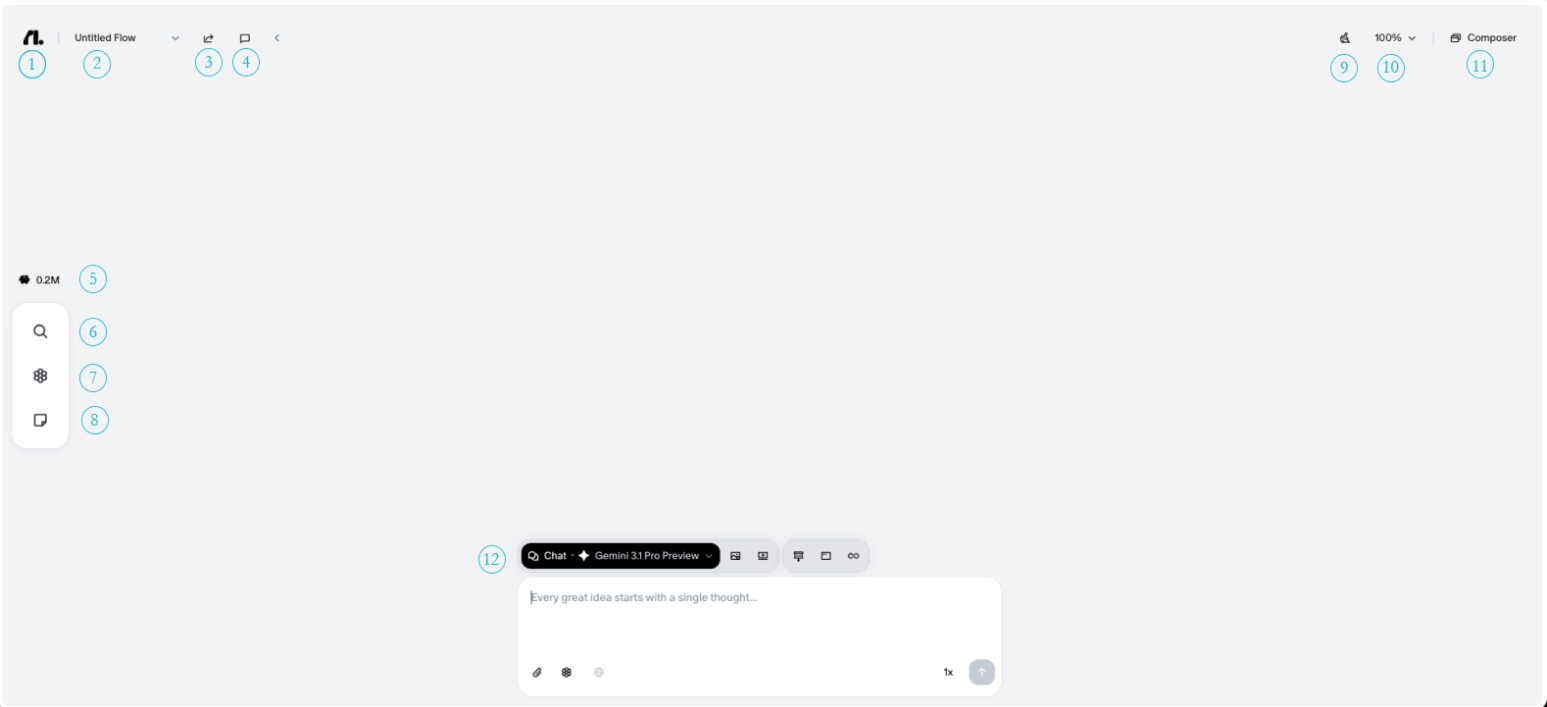
The canvas is where your conversations with Flowith live. Every input and response becomes a node which you can continue, branch from, or reference in future prompts. Your entire session builds up as a visual map of nodes you can navigate freely.
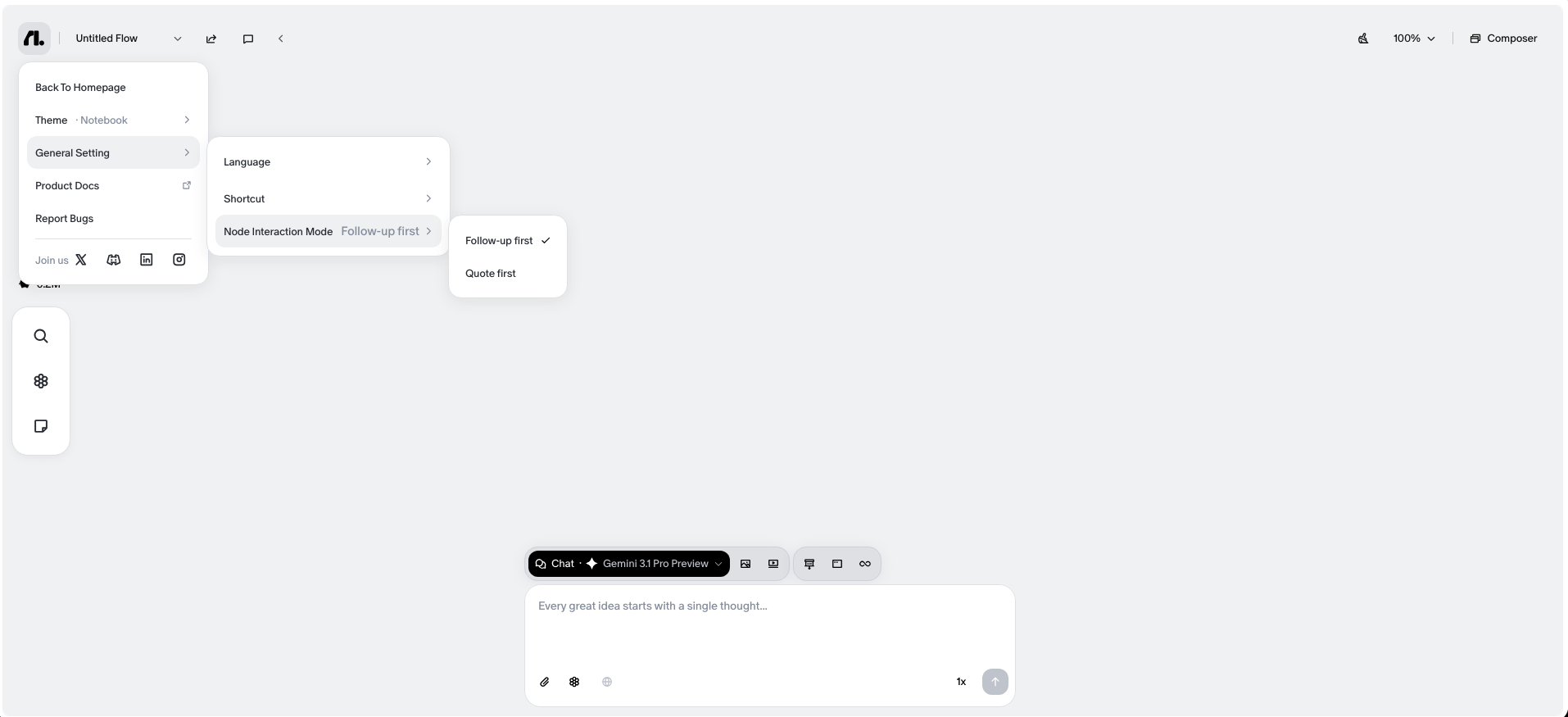
- 1. Flowith Menu: Access canvas settings and navigation. Click to open a menu with options to return to the homepage, change your theme, adjust general settings (language, shortcuts, and Node Interaction Mode), view product docs, and report bugs.
- 2. Flow Selector: Switch between your saved flows.
- 3. Share: Share the current canvas with others and invite them view or create on this canvas.
- 4. Comment: Drop a standalone comment anywhere on the canvas.
- 5. Credits: Your remaining credit balance
- 6. Search: Search across all nodes on the current canvas
- 7. Knowledge Base: Attach documents or saved knowledge for the AI to reference in chat mode
- 8. Free Node: Put things into the canvas without a response.
- 9. Organize: Auto-arrange your nodes for a cleaner layout.
- 10. Zoom: Adjust the zoom level of the canvas and check the canvas shortcuts.
- 11. Composer: Open the text composer for longer or more structured inputs
- 12. Prompt Input: Type your message here and send it to the AI
Interaction Mode
This setting controls what happens when you click a node on the canvas. It is the most important setting for shaping how you work. You can switch between modes anytime in Settings.
Follow-up First
Click a node to use it as your starting point. Flowith will carry the full context of every node leading up to the one you selected into your next message, so the conversation continues with complete awareness of what came before.
The follow-up conversation will appear below the node you clicked, connected by a dashed line.
Best for: deep-diving into a single topic, breaking down complex problems step by step, continuous back-and-forth on one thread.
- Click any node to set it as your active context
- All previous nodes in that thread are included automatically
- Type your follow-up and send, then AI has the full picture
Use Follow-up First when you want to keep building on a single conversation without losing context.
Quote First
Click a node to cite and add it to your next prompt as a reference. You can click multiple nodes to collect several sources before sending a single message.
Best for: multi-source integration, structured summarization, cross-node content creation.
- Click one or more nodes to add them as quotes
- The selected nodes appear as references in your input field
- Write your prompt around the quoted content and send
Quote First also adds two exclusive controls to every node on the canvas:
- Follow-up button: Appears below each node. Click it to switch into a follow-up conversation from that node, carrying its full context forward without having to change modes.
- Duplicate (+) button: Appears to the right of each node. Click it to create a copy of that node on the canvas, useful for branching an idea in a new direction without losing the original.
Use Quote First when you want to pull ideas from multiple places and have the AI work with all of them at once.
Which mode should I use
Use Follow-up First when:
- You are working through a problem over multiple rounds
- You want to drill deeper into one specific response
- You need the AI to retain the full history of a thread
Use Quote First when:
- You want to combine outputs from different branches
- You need to summarize or restructure content from multiple nodes
- You are comparing or merging ideas from across the canvas
Neither mode is permanent. Switch freely in the Flowith Menu whenever your task changes.